Onboarding incomplete email: templates for SaaS users who stopped mid-setup
An onboarding incomplete email reminds a user who started setup and stopped which step is left. Templates for each place people stop, and when to send.
By Ardit Karavidaj, Founder & CEO, FoundryX · Updated October 31, 2026
An onboarding incomplete email is a reminder sent to a user who started setting up your product and stopped partway, naming the exact step they left unfinished and linking straight back to it. It is different from a general onboarding email because the person has already shown intent: they created an account, did some of the work, and then got interrupted, confused or blocked. The best reminder picks up where they stopped, credits what they already did, and asks for one step, not the whole checklist.
This page is for people who started setup and stopped. If someone signed up and never did anything at all, see activation emails; for the emails every new user gets, see the full onboarding sequence. All three are emails based on what users do, and all three depend on knowing which steps each person has finished.
When should you send an onboarding incomplete reminder?
Not the moment they stop. People leave a setup screen to find a password, ask a colleague or eat lunch, and many come back on their own the same day. A reminder that lands while the tab is still open feels like being watched.
| Where they stopped | First reminder after | A second one? |
|---|---|---|
Early, at a quick step (profile, preferences) | 1 day | Rarely. One reminder is enough |
At a step that needs something they may not have at hand (a file to import, a logo, a price list) | 1–2 days | Yes, a few days later, with a simpler way through |
At a step that needs someone else (admin access, payment details, a developer) | The same or next working day | Yes, written to be forwarded |
Came back to the same step several times | The next working day | Offer help from a person instead |
Did everything except the last step (publish, go live) | 1 day | Yes, showing what is already ready |
Each reminder is cancelled the moment the step is done. After two or three without progress, stop, and write again only when something changes for them, like a fix for the step that blocked them.
What should an onboarding incomplete email say?
- Name the step, not the checklist. “Add your opening hours” is a task. “Complete your setup (3 of 6 steps)” is a chore.
- Credit what they did. “Your four classes are saved” tells them nothing was lost, and makes the remaining step look small.
- Say what finishing unlocks, in their terms: bookings start arriving, the report fills with real data, the team can log in.
- Link to the step itself. The screen where they stopped, not the dashboard.
- Make help easy to get. An address a person reads, or one line on the snag most people hit at that step.
- Leave out progress bars and percentages. They turn a two-minute task into a score the person is failing.
Onboarding incomplete email templates
These are for Mosswood, a made-up booking tool for small yoga and fitness studios. Setup has six steps: add classes, set opening hours, connect a calendar, turn on online payments, invite instructors and publish the booking page. Each template is for one place people stop.
Subject: Your four classes are saved in Mosswood
Hi Priya,
Your four classes are saved, from Morning Flow to Restorative. The one thing between them and your first online booking is your opening hours, so clients can see when each class runs.
It takes about two minutes, and you can copy one day’s hours to the rest of the week.
Set your opening hours: [link]
Jonah
Subject: Connecting your Google Calendar to Mosswood
Hi Sam,
You started connecting your calendar twice yesterday. The step that usually stops people is Google asking which calendar to share: pick the one your studio schedule lives in, not your personal one.
Once it’s connected, bookings appear in your calendar and you can’t be double-booked.
Finish connecting your calendar: [link]
If it still won’t connect, reply and I’ll do it with you.
Jonah
Subject: A note for whoever handles the studio’s payments
Hi Ellie,
Turning on online payments needs the studio’s bank details, which usually means the owner. Here’s a short note you can forward: what Mosswood needs, why, and how the charge will look to clients.
Everything else is ready: your classes, hours and booking page are set up and waiting.
Forward the payments note: [link]
Jonah
Subject: Your booking page is ready to go live
Hi Marcus,
Your booking page has your six classes, your hours and your prices, and the preview you opened on Tuesday is exactly what clients will see.
Publishing it gives you a link to put on Instagram and your website, and you can still change anything afterwards.
Publish your booking page: [link]
Jonah
Subject: Leo and Amara don’t have Mosswood logins yet
Hi Dana,
Three of your classes list Leo or Amara as the instructor, but neither of them has a Mosswood login yet. Once they do, each sees their own schedule and hears about bookings for their classes straight away.
Inviting them takes their email addresses and nothing else.
Invite Leo and Amara: [link]
Jonah
Each email names one step and one thing the person already did. None of them lists the rest of the checklist.
Subject lines for setup reminders
A good subject names the step or the thing they made. It reads as information, so it gets opened by the people who meant to finish anyway.
| Where they stopped | A subject that works | A subject to avoid |
|---|---|---|
Added classes, no opening hours | Your four classes are saved in Mosswood | Complete your setup (2 of 6) |
Calendar connection tried twice | Connecting your Google Calendar to Mosswood | Action required |
Payments need the owner | A note for whoever handles the studio’s payments | You’re almost there! |
Everything but publishing | Your booking page is ready to go live | Don’t forget to finish onboarding |
The subjects on the right could go to anyone, at any step, and people quickly learn to skip them.
Onboarding reminder mistakes to avoid
- Reminding about the whole checklist. Six unchecked boxes is a project. One named step is a task.
- Sending while they’re still working. A reminder that arrives while the setup tab is open feels like being watched. For most steps, wait until the next day.
- Missing steps finished elsewhere. If a calendar sync completes on your server a minute later, the browser never sees it. Send that step’s event from your backend, or the reminder goes to people who already finished.
- Reminding about a step that’s broken. If many people stall at the same step, look at that screen first. Fixing one confusing field helps more people than any email.
- Inventing a deadline. “Your setup will expire” turns a helpful nudge into a threat. Setup isn’t due; say what finishing unlocks.
- A no-reply address. “It keeps failing on step three” is the most useful thing a stuck user can send you. Make sure it reaches a person.
How to measure setup reminders
- The step, finished. For each reminder, count how many people completed the step it named within a few days. That is the email’s whole job.
- Time to finish setup. Compare how long people take to complete setup now with how long they took before the reminders, not only whether they finish.
- Where reminders don’t help. A step that stays stuck after two reminders and an offer of help is a product problem, and the numbers show you which step.
- Offers of help taken up. How many people accept help from a person tells you whether that second email is worth someone’s time.
Set expectations from your own product first. As an outside reference, Userpilot’s Product Metrics Benchmark Report 2024, from 547 SaaS companies, measured an average time to value of 1 day 12 hours at product-led companies and 1 day 11 hours at sales-led ones. That fits a first reminder about a day after someone stops, rather than within minutes.
Which setup steps should you track?
A reminder can only be as precise as what you track. Page views show where someone stopped; an event for each finished step shows what is done. Most products need one event per step, sent as it completes. For Mosswood that is six:
class_added, when the first class is savedhours_set, when opening hours are savedcalendar_connected, when the sync succeeds, not when the button is pressedpayments_enabled, when online payments are switched oninstructor_invited, when the first invite is sentbooking_page_published, the last step, and the one that ends the reminders
Steps a person finishes in the browser can be sent from your web app. Steps that complete on your server, like a calendar sync that finishes in the background a minute later, are better sent from the backend: here is how to track setup steps as events.
How to send onboarding incomplete emails in Behavly
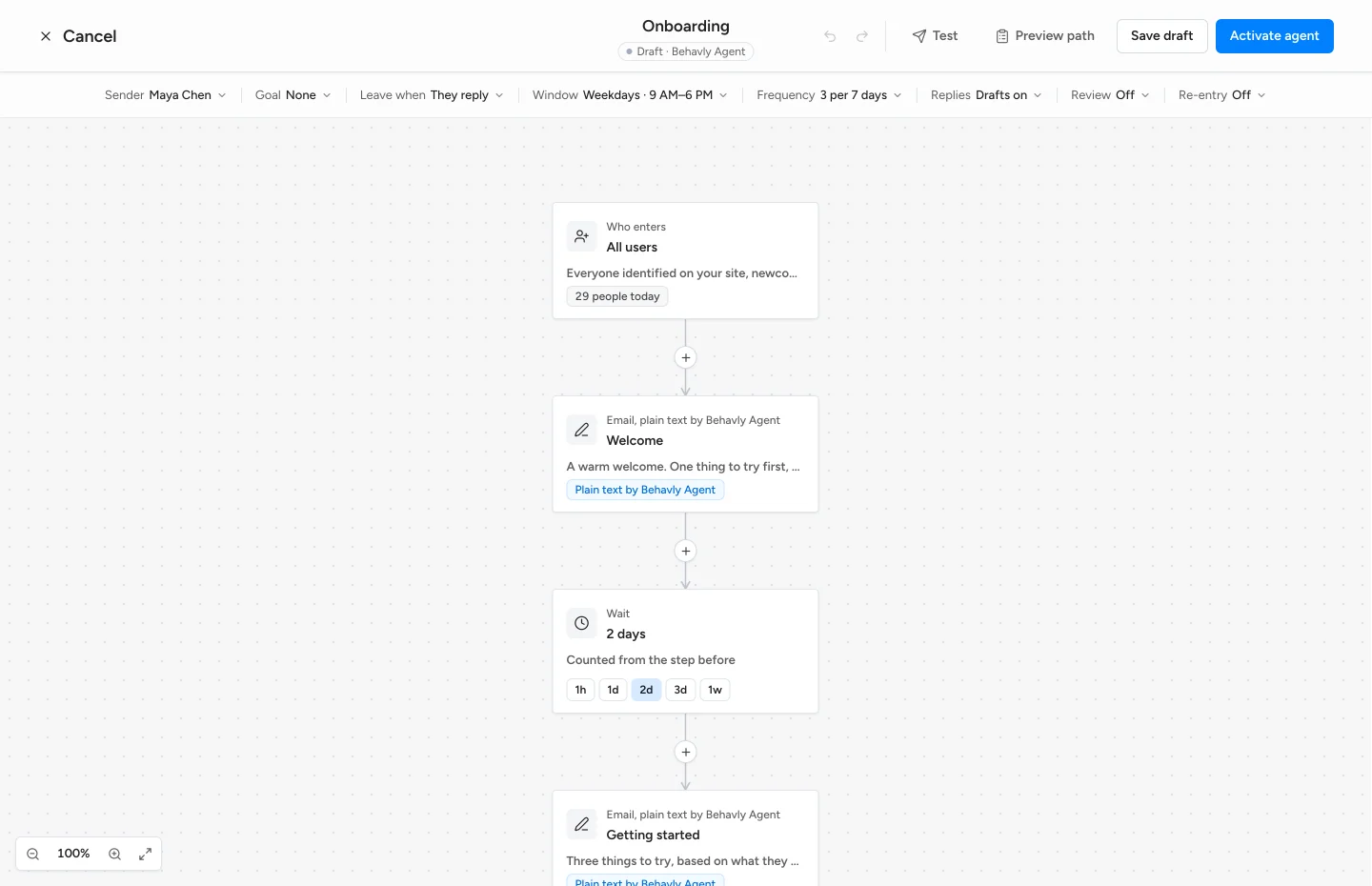
Behavly tracks what each signed-in user does in your product, takes in the people who stalled as they stall, and writes each reminder from what that person already did.
- 1Install the tracking snippet from Tracking → Setup on your signed-in pages, so every setup screen a person opens is tied to them, with no identify call. Send each finished step with
behavly.track(for examplehours_set). - 2Describe who is stuck. In Automations, choose Pattern Campaign, then Choose who enters, and under Looking for another pattern? describe the group, such as people who did
class_addedbut neverbooking_page_published, and haven’t been seen for a day. Behavly shows who matches and how many before you choose Add this pattern. - 3Keep it running. Set How it runs to Always on. Behavly re-checks the group every 10 minutes and each person enters once, the moment they stall. Turn on Also the people in it now to include the people who stalled before you started.
- 4Write the reminder from what they did. Add a Plain text by Behavly Agent step with Instructions for Behavly Agent such as “Name the one setup step they stopped at, mention what they have already set up, and link to that step. No checklist.” Each email is written for that person from their activity, so people who stopped at different steps get different reminders.
- 5Wait, then offer help. A Wait of 3 days, then a second, shorter email offering to do the step with them. Reply in the same thread is on by default for it, so it arrives under the first email, like a follow-up from a colleague.
- 6Stop when they finish. Set the Goal to
booking_page_publishedand turn on They reach the goal under Leave when. A reply ends the path too, by default. - 7Read before it sends. Preview writes each step for a real person in the group, and with Hold Behavly-written emails for approval on, you approve the reminders before they go out.
Reminders go out from your own mailbox, connected in Settings → Email, within the sending window, weekdays 9:00 AM to 6:00 PM in each person’s timezone by default. Always-on campaigns work on every plan, Free included.
Questions
- What is an onboarding incomplete email?
- A reminder to a user who started setting up your product and stopped partway. It names the step they left unfinished, credits what they already did, and links straight back to that step.
- When should I send a setup reminder email?
- About a day after they stop for most steps, and the same or next working day when the step needs someone else, like an admin or whoever holds the company card. Never within minutes: many people come back on their own.
- How many onboarding reminders should I send?
- Two or three per stalled step, a few days apart, stopping the moment they finish it or reply. After that, write only when something changes for them, such as a fix for the step that blocked them.
- Should the reminder list every unfinished step?
- No. Name the one step they stopped at and link to it. A full checklist turns a two-minute task into a project, and the next reminder can cover the next step.