 Behavly
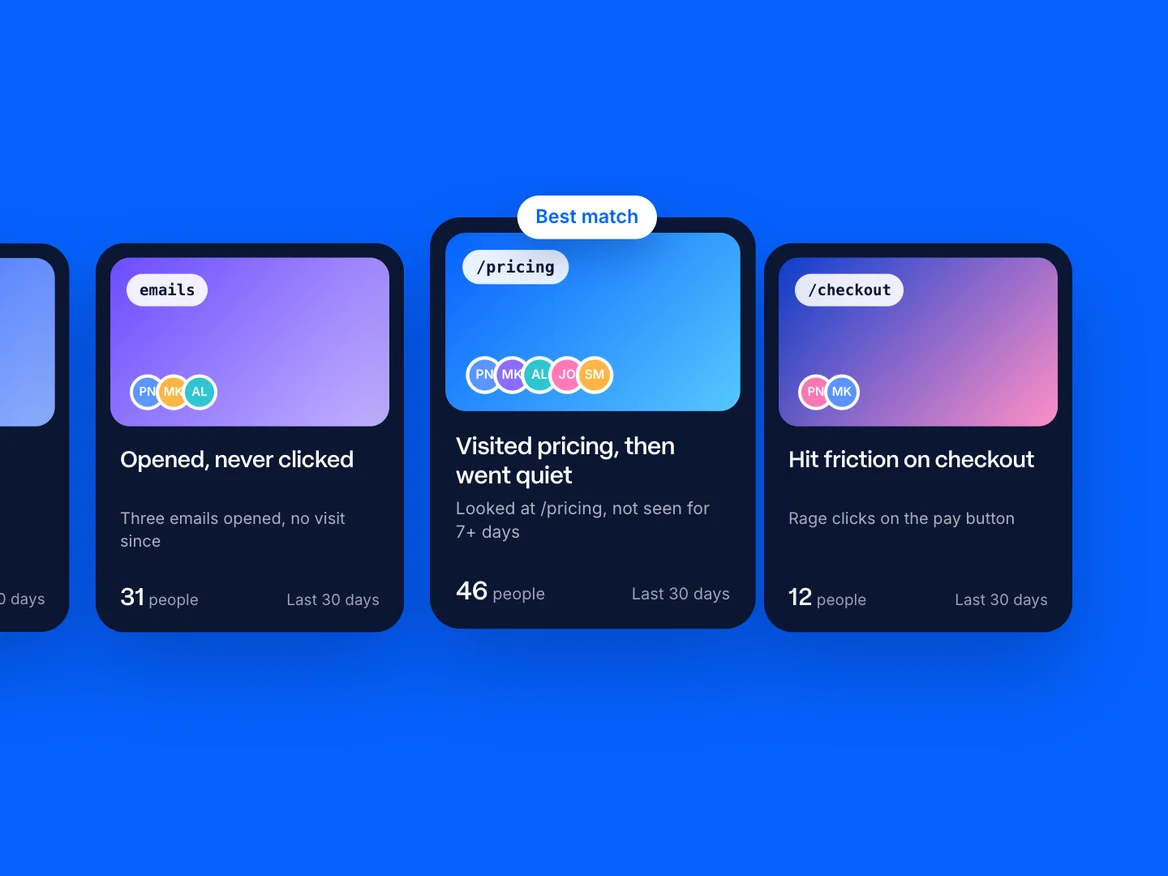
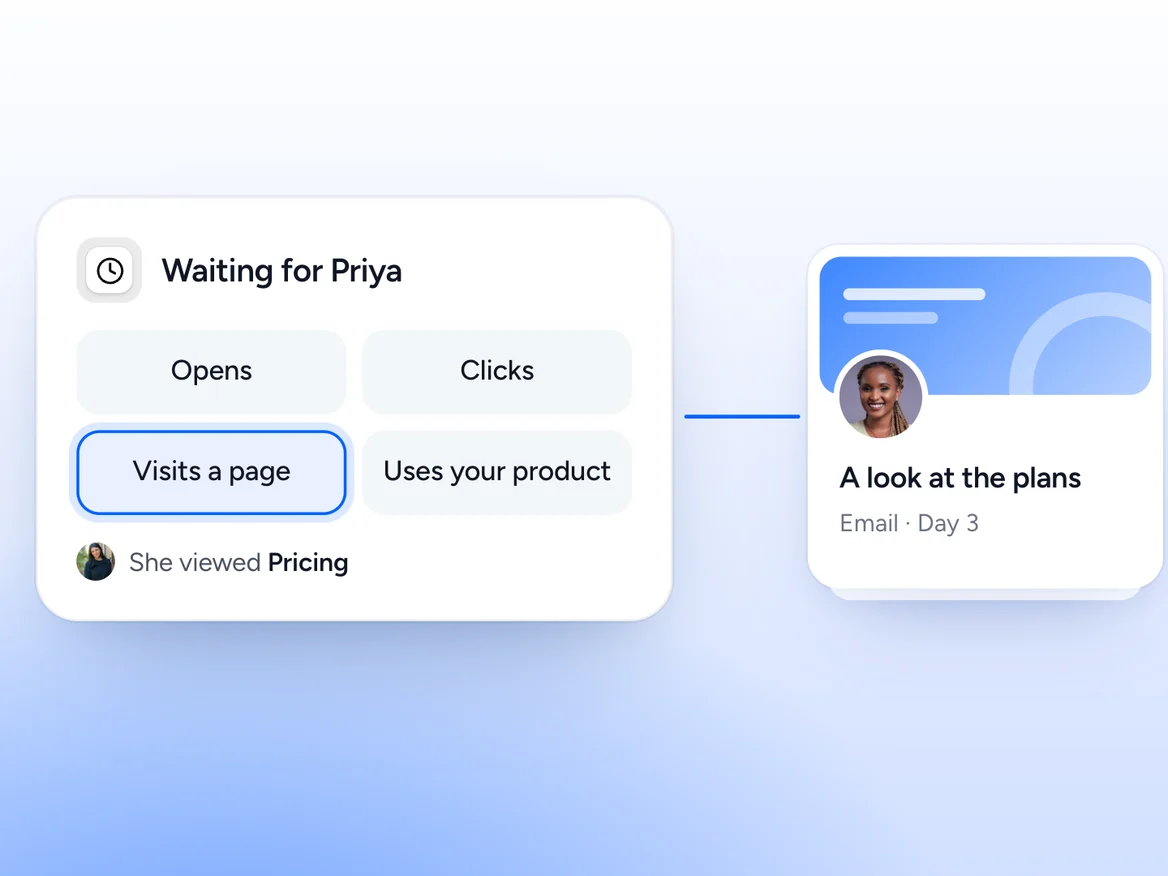
Every campaign counts two results on its Analytics tab: Opportunities and Conversions. Insights → Campaign performance adds up every campaign. Each shows a count and, beside it, what those people are worth.
Opportunities
An opportunity is a person whose reply to a campaign shows interest. Every reply matched to a campaign carries a lead status in the Inbox, set by you or by Behavly when it reads the reply. High-intent makes the person an opportunity from that reply on, and Suppress ends it. Any other status changes nothing, so a “thanks!” after “send me pricing” still counts.
- A person counts once per campaign, on the day of the reply that made them one.
- Someone who replies with interest to two campaigns is one opportunity in each, and Insights adds the campaigns up.
- The amount is the count times the Value of one customer you set on Brand, under Details. It is an estimate of what they are worth, not money received.
Conversions
A conversion is a person who reaches your goal within 7 days of a campaign email. The last campaign email before it gets the credit, and a person is one conversion per campaign. What counts is set on Brand, under Details, in Conversions:
- Detected automatically
- The default. A person who comes back to your website from a completed checkout is a conversion. Nothing to set up. Test-mode checkouts never count.
- A page people reach
- A page only a customer reaches, such as
/welcome. - An event your product sends
- An event such as
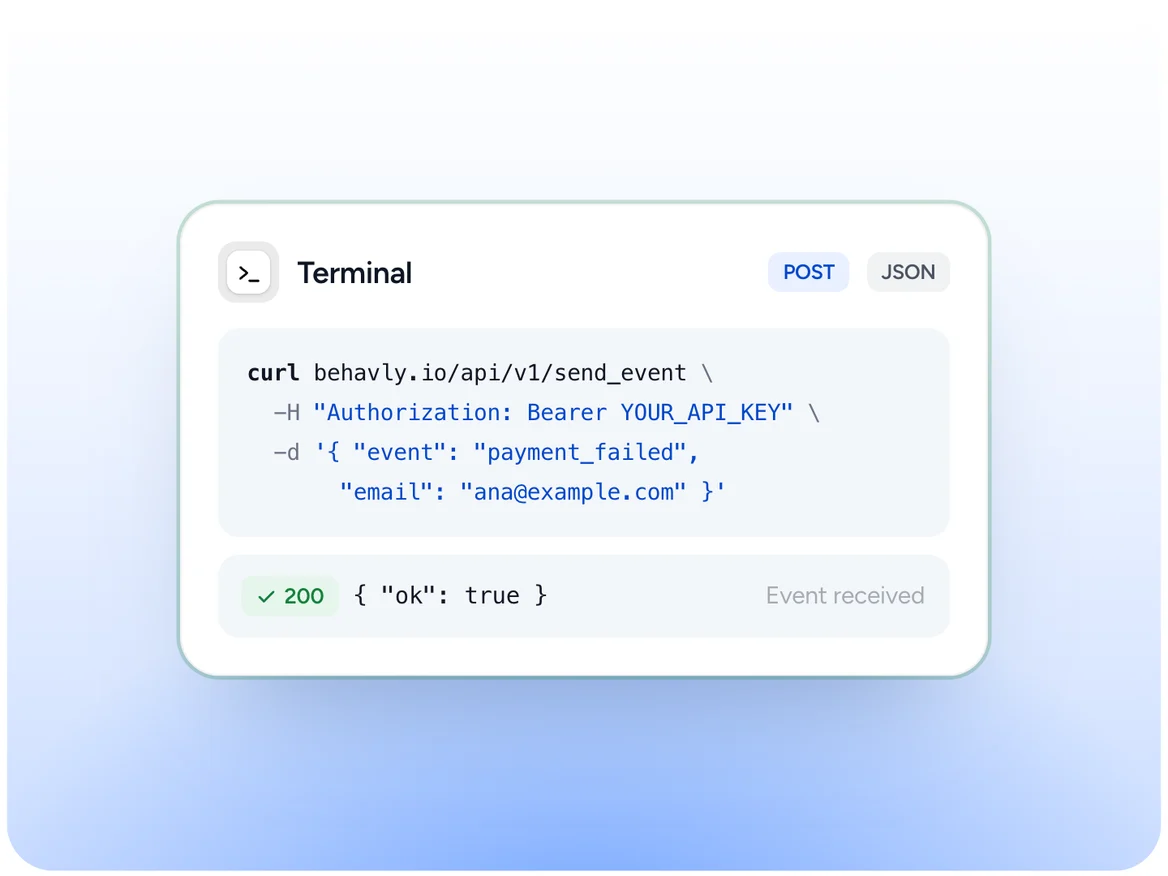
subscribed. An amount sent with the event (value, currency) is used as it is.
The amount is what your product sent with each conversion. Where none was sent, the Value of one customer stands in, and the tile says the amount is estimated.
No payment provider is connected for this. Behavly reads conversions from what it already tracks: the pages people reach on your site and the events your product sends.
Set Them Up
- 1Open Brand and go to Details.
- 2In Value of one customer, enter what a new customer pays you.
- 3In Conversions, choose what counts. Leave it on Detected automatically if your checkout sends people back to your site.