Trigger Campaigns: follow up the moment something happens in your product
Your backend sends Behavly an event, like a failed payment or an ending trial, and a Trigger Campaign takes that person in the moment it arrives. Here is how it works, from the first trigger to the follow-up path.
Some of the moments most worth an email never happen in a browser. A card is declined. A trial is about to end. An export finishes. Your product knows when each one happens, and with triggers and Trigger Campaigns, your follow-up starts right then.
A trigger names one of those moments. Each time it happens, your backend sends Behavly an event for the person, and every active Trigger Campaign that starts on that trigger takes them in the moment it arrives. From there it is a path of emails, waits and branches, built the same way as a Pattern Campaign, and it can end as soon as the problem is fixed.
A trigger names the moment
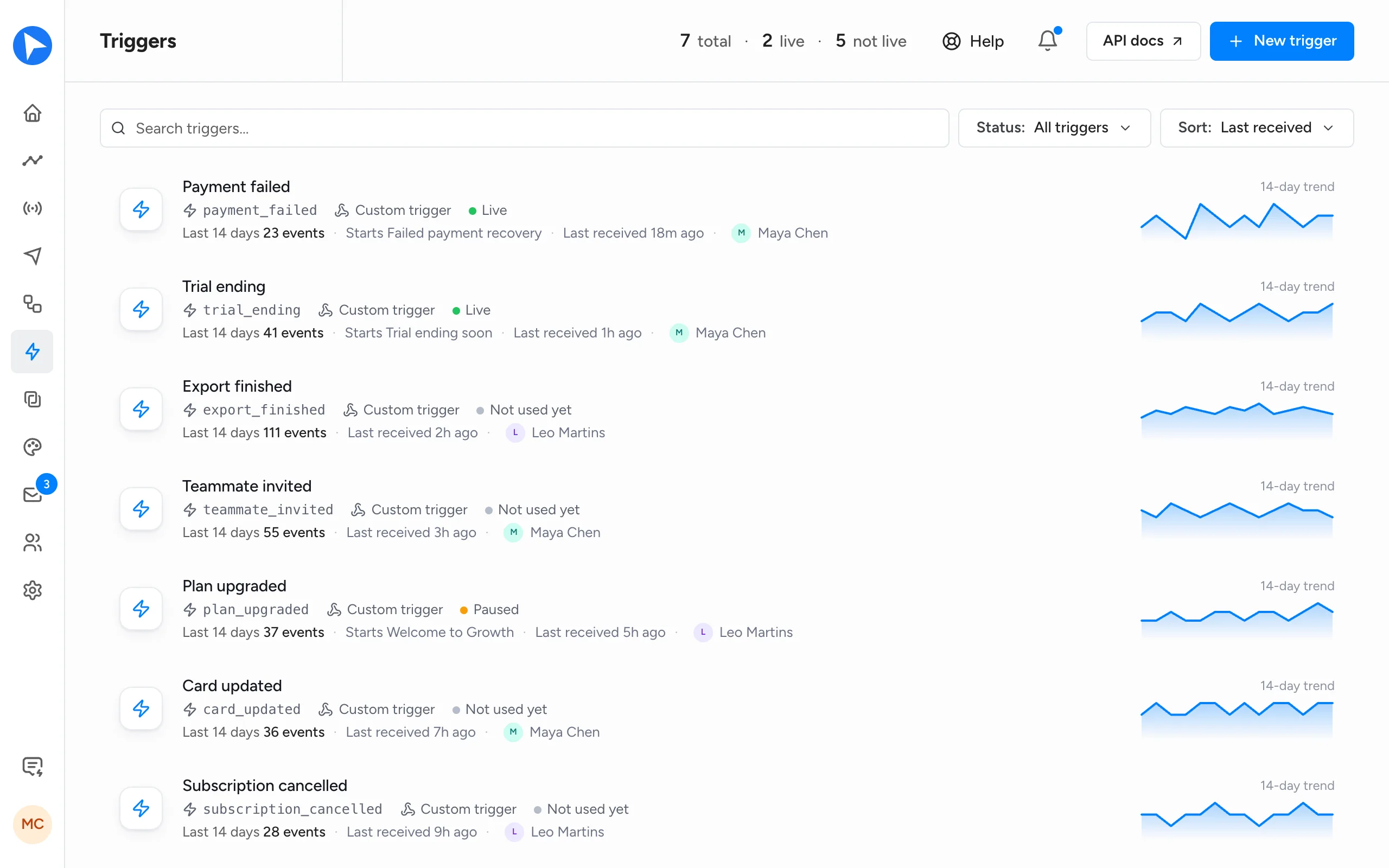
You make a trigger once, in Triggers in the main menu, or while you build a Trigger Campaign.
- 1Click New trigger and give it a Name, like Payment failed. The Key follows it (
payment_failed). It is what your code sends, and it can't change once the trigger exists. - 2Under Payload, list the details each event carries, each with a type (text, number, yes/no, date or list) and whether it is required. Or paste an example under Example JSON and choose Apply to fields.
- 3Click Create trigger. Behavly shows the request that sends it, in cURL, JavaScript, Python, Java, C#, Go, PHP or Ruby.
- 4On the trigger's page, Create an Agent opens a new Trigger Campaign that already starts on it.
The person is always email. It is not a payload field, and an event without it is refused.
Your server sends the event
Create an API key with Send events only access in Settings → API. That key can send events and nothing else, so if it ever leaks it cannot read your contacts or change anything. Keep it on your server and send each event to send_event:
curl -X POST 'https://behavly.io/api/v1/send_event' \
  -H "Authorization: Bearer $BEHAVLY_API_KEY" \
  -H 'Content-Type: application/json' \
-d '{"event":"payment_failed","email":"ana@example.com","properties":{"plan":"Pro","amount":49}}'eventis the trigger's key, andemailis the person it is about. Both are required.propertiesholds the details, as JSON: at most 50 keys and 8 KB.occurred_atis optional and can date the event up to 30 days back.idempotency_keymakes retries safe: the same key twice is one event, counted once.
The answer names each campaign the event started, and why any did not. To send many at once, send_events takes up to 100 in one request.
Behavly refuses an event sent from a browser with a key, because anyone can copy a key out of a web page. On your website, the snippet's behavly.track("payment_failed", { plan: "Pro" }) starts the same campaigns for a visitor your site has identified.
The person enters the moment it arrives
When an event arrives, every active Trigger Campaign that starts on its trigger takes the person in at once. Events from before the campaign was active don't count. People already on any path who wait for, branch on or aim for that trigger move on right away.
A new campaign opens with Describe the path: say what each email should do, choose Build the path, and Behavly lays out the emails, waits and branches for you to check. A Behavly Agent step writes each email for the person, in your sender's voice, from their activity.
The usual rules still apply: your Agent guardrails across campaigns, review before sending, unsubscribes and bounces. A Trigger Campaign sends right away by default, so an event that arrives at night gets its email at night. Choose Only in a window under Sending to keep it to set days and hours, in each person's own timezone.
Each trigger's page lists the last 25 events received, with the details each carried and what it did.
The event's details go into the email
Every payload field can go into the emails a Trigger Campaign sends. {{event.plan}} is the tag for a field named plan. After a |, write what it says when there is no value: {{event.plan|your plan}} reads “your plan” then. Without a fallback, the tag is taken out and the sentence around it mended.
In the template editor, type {{ or click the { } button, and pick a field under Trigger fields. Tags work in the subject, in plain-text emails and in designed ones.
- A field is filled from the event that started the person's path. Doing the trigger again while on the path doesn't change it.
- Numbers get thousands separators (
1,250), and true and false read yes and no. A list or a nested object never goes in: its tag shows the fallback.
We use this in Behavly's own email. The first email after a cancellation opens with Your {{event.previous_plan|paid}} plan has ended, so it names the plan the person had, or says “paid” when the event didn't carry one.
You decide what a repeat means
A payment can fail twice; a signup happens once. If it happens again says what a repeat means:
- Once per person, the default. They go through the path one time, and later events start nothing. For things that happen once, like signing up or starting a trial.
- A new case each time, for problems that can come back, like a failed payment. A repeat while the problem is open is noted on their path and never starts it over. Set the goal to what fixes it, like
payment_succeeded: reaching it takes them off the path, and the next failure starts a new path at once. Left unfixed, a new path starts 30 days after the last one began. - Again after a break, for interest that comes back, like viewing pricing. Repeats while they are on the path are noted, and 7, 30 or 90 days after leaving (30 by default) they can go through again.
Whatever you choose, the same event within 10 minutes counts once, nobody goes through a path more than 3 times in 90 days, and an unsubscribe, bounce or spam complaint ends it for good. A reply ends only the current path, so a later case can still start one. Each repeat shows in the person's timeline as Did the trigger again.
A Trigger Campaign set to A new case each time is also Urgent across campaigns unless you change it, so its emails never wait for the Agent guardrails that space out your other campaigns.
Get started
Trigger Campaigns work on every plan, Free included, and there is no plan limit on how many are active. Events from your server count toward your plan's monthly product events. Events from your website snippet don't, and neither do test events.
 behavly
1,000
You can watch a trigger work before you write any code. Every trigger's page has Send a test event, which sends the event now for the address you enter, with example details, exactly as your server would. Use your own address: an active Trigger Campaign that starts on it takes you in, and its emails are real. A workspace can send 30 test events an hour.
- 1Open Triggers, click New trigger and list the payload.
- 2Choose Create an Agent on the trigger's page, describe the path and activate it.
- 3Send a test event to your own address and watch the path start.
- 4Create a Send events only key in Settings → API and send the event from your server.
Every field and setting is in Start a campaign from a trigger, and the steps, waits and branches in Building the path. For which events deserve an email, read how to trigger emails from product events.