 Behavly
Customer health score: what to track beyond logins
A customer health score built on logins shows who is present, not who is getting value. Here is what to put in a score besides logins, how to weight it and check it against the accounts that actually left, and what to do when it flags one.
A customer health score is one number per account, built from a few weighted signals, that tells your team which accounts need attention first. There is no standard formula. You choose the signals, give each a weight, and check the result against the accounts that actually left.
Most scores start with logins, because logins are easy to count. That is where they mislead. A login shows that someone was there. It does not show that the account got anything done. This post covers what to put in a health score besides logins, how to weight and review it, and what to do once it flags an account.
Why a health score built on logins misses at-risk accounts
Take two accounts on a made-up project tool. Both log in every working day, so on a login chart they look the same.
| Account A | Account B | |
|---|---|---|
Who logs in | One person | Five people across two teams |
What they do | Open one dashboard, read it, leave | Create projects, assign tasks, share reports |
Features used | One | Four |
If that one person leaves | Nobody else knows the tool | The work carries on |
What a login score says | Healthy | Healthy |
Account A is the risk. Its value sits in one screen that a spreadsheet or a cheaper tool could replace, and with one person who could change jobs. A score built on logins shows it as healthy right up to the renewal. Account B really is healthy, but the score cannot tell you why.
The fix is not to drop logins. It is to stop treating them as the whole picture. Keep them as a sign that someone is there, and add signals that show the account is getting value.
What to put in a customer health score besides logins
Pick signals you can track today, from data you already collect. A signal someone has to fill in by hand each month will be out of date when you need it. These five cover most of what logins miss:
| Signal | What it adds to logins | How to track it |
|---|---|---|
Depth: does the account do the core action? | Tells opening the app apart from getting the job done | Send the core action from your product as an event (a report shared, an invoice sent) and count it per account |
Breadth: how many people, how many features | Shows whether the account depends on one person or one screen | Active people per account, and how many of your main features each account used in the period |
Trend against its own past | Catches a busy account that is quietly doing half as much, without flagging accounts that are light by design | Compare this period with the same account’s own level over recent months |
Friction | Tells stuck apart from bored | Rage clicks, dead clicks, error pages, the same help article opened again and again |
Billing, downgrade and cancel page visits | The plainest sign that someone is weighing whether to leave | Visits to the pages under your billing and plan settings, per person |
Logins stay in the score as one light signal, because a sudden stop still matters. Most teams also add things that are not behavior: support tickets, survey answers, the renewal date. Those live in your CRM or help desk and belong in the score too. Keep the behavior signals separate from them, so that when the score moves you can see which part moved.
Score each behavior signal against the account’s own history wherever you can. “Half of what this account did last quarter” says more than “below average”, because an average mixes accounts that were never meant to look alike.
How to build a simple health score
- 1Write down what healthy means. One sentence per kind of customer, in terms of the core action: “a healthy account shares at least one report a week, and more than one person does it.” If you cannot write the sentence, the score will not find it either.
- 2Pick four to six signals. One or two for depth, one for breadth, one for trend, and friction and billing visits as warning signs. Every signal you add makes the score harder to explain, and harder to fix when it is wrong.
- 3Give each signal points. Split 100 points across them, with the most on the core action. A signal worth so few points that it never moves the score can be dropped.
- 4Set bands. Healthy, watch and at risk are enough. Keep the at-risk band small enough that someone can look at every account in it each week.
- 5Decide what each band triggers. Who looks at the account, and what they send. A score nobody acts on is just a report.
An example to start from
| Signal | Points | Full points when |
|---|---|---|
Core action, against the account’s own past | 35 | At or above the account’s usual weekly level |
Active people | 20 | More than one person did the core action this month |
Features used | 15 | Two or more main features used this month |
Logins | 10 | Someone signed in this week |
No friction | 10 | No repeated rage clicks or error pages this week |
No billing or cancel visits | 10 | Nobody visited those pages this month |
These points are a made-up starting point, not a benchmark. The weights that fit your product come from the next step.
Review the weights against who actually churned
A health score is a guess until you check it. Once a quarter, or after every few cancellations:
- Look back at the accounts that cancelled. What did the score say a month or two before they left? If most of them were green, the score is missing the signal that mattered.
- Look at the accounts it flagged. How many of them actually left or shrank? If almost none did, the at-risk band is too wide or one signal is too noisy.
- Find the signal that moved first. That one deserves more points. A signal that never moved before a cancellation deserves fewer, or none.
- Check the accounts that renewed or grew. They should have been green. If they looked at risk, a signal is punishing normal behavior, such as a visit to billing to update a card.
Change one thing at a time, and write down why. When the score flags a big account, the person reading it should be able to see where every point came from.
From score to action
The score tells you which accounts to look at. It does not tell you what to say. Before writing, look at what the people in the account actually did: where they stopped, which feature they never touched, who went quiet while others kept going. The email should be about that, never about the score.
- For paying customers whose usage is falling, see the emails to send when a customer’s usage drops.
- For accounts that show up but stay shallow, write about the feature they have not found. Feature adoption emails covers how.
- For accounts that signed up and never reached the core action, see activation emails for users who never activated.
- For people who have already left, see win-back email examples.
For Account A from the start of this post, the email goes to the one person who logs in, about spreading what they already use:
Subject: Your Monday dashboard, for the whole team
Hi Tom,
You open the Projects dashboard most mornings, and so far you’re the only one on your team who does.
That dashboard can go to the rest of the team by email every Monday, so they see the same numbers without logging in. It’s two clicks from the dashboard itself.
Set up the Monday email: [link]
Dana
A made-up example. It names what this one person does and offers the step that takes the value past them.
Where Behavly fits
Behavly does not compute or show a customer health score. Build the score from signals you can track, in the tool you already keep it in. Behavly shows the behavior behind it for each signed-in person, and sends the follow-up.
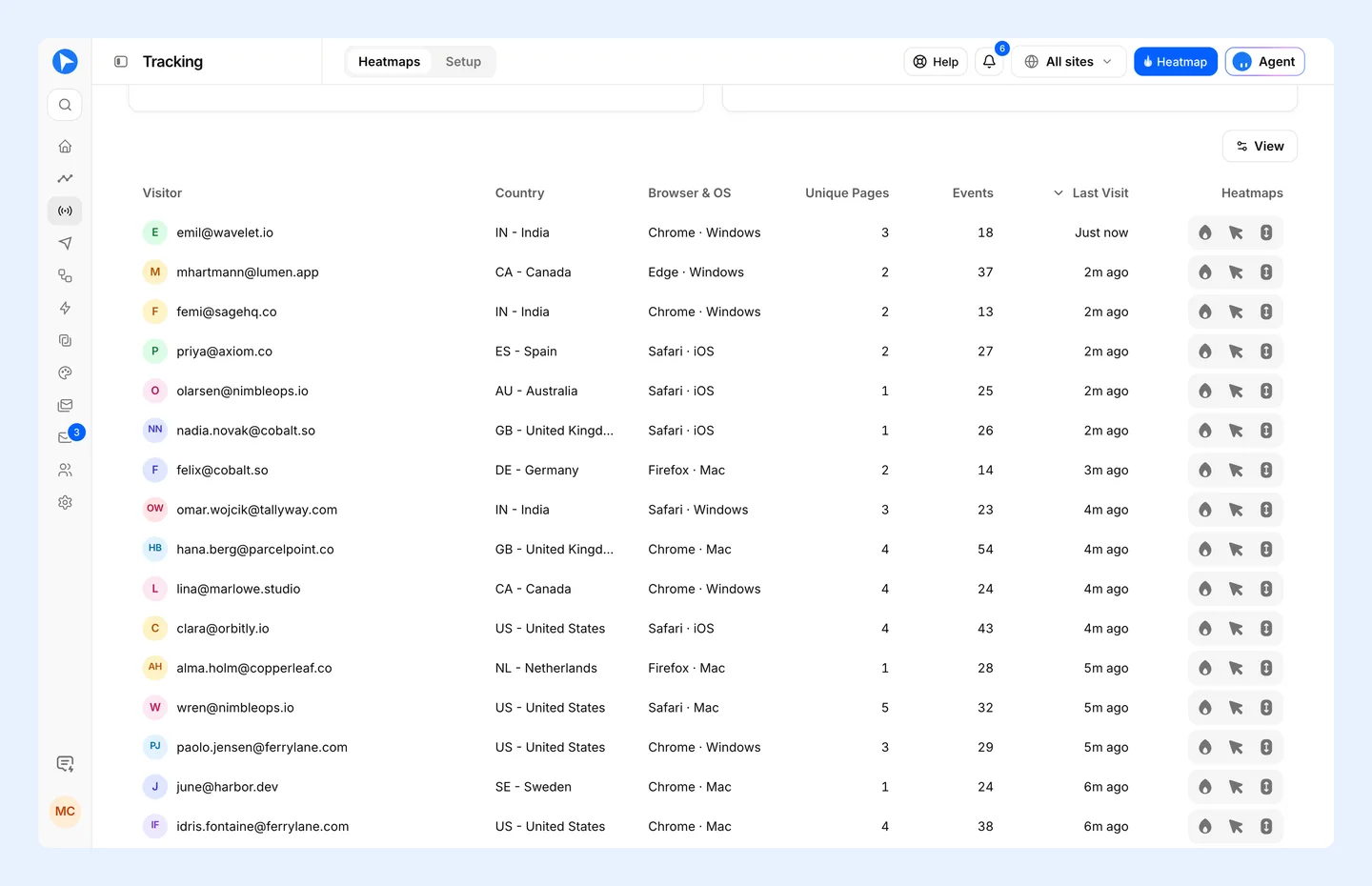
- The behavior, per person. One script tag tracks what signed-in people do on your site and product. You do not call an identify function: the snippet picks up the signed-in session itself, and Clerk, Supabase, Okta and Amazon Cognito sessions are recognized. Each person is one row, merged across their devices, with their pages, events and last activity.
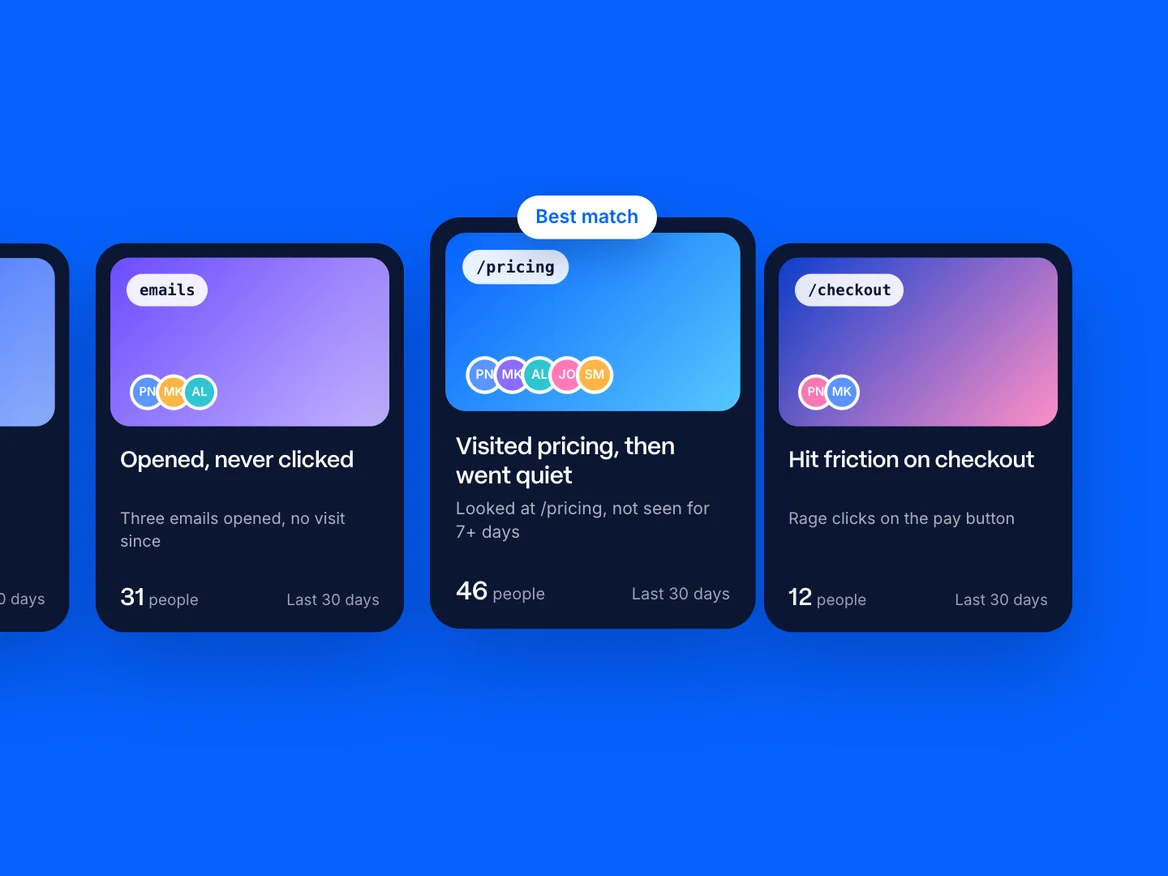
- Friction you can filter. The Friction filter keeps the people who rage-clicked or dead-clicked in the period, and Engagement separates people who bounced from people who came back.
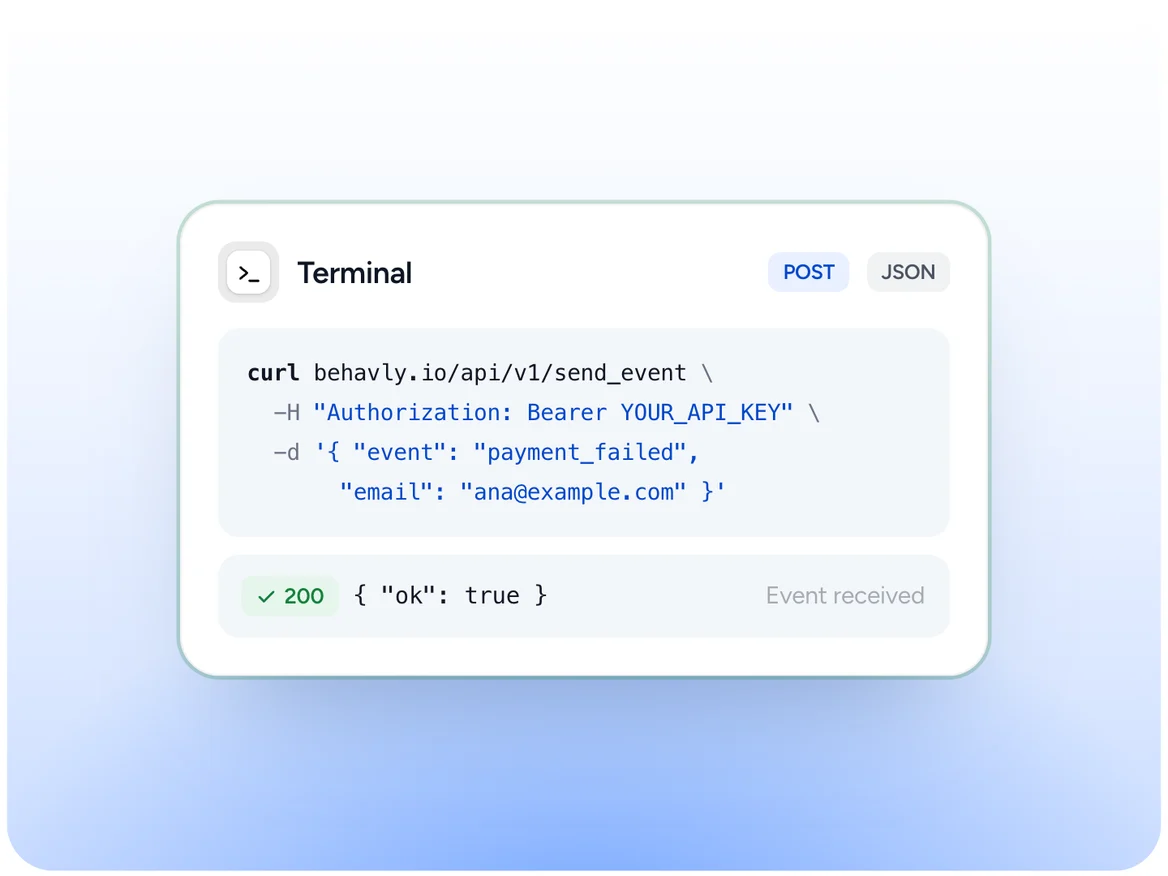
- The core action as an event. Send it from your site with
behavly.track, for examplebehavly.track("report_shared"), and a campaign can check whether each person is still doing it.
Describe the at-risk group in plain words
Under Looking for another pattern?, you describe the group you want and Behavly turns it into a rule:
- 1Describe the group in your own words, for example people who used to be active and have not been seen for two weeks, or people who visited your billing pages this week.
- 2Behavly matches the description against a closed set of behavior rules. It does not write a database query, and it cannot invent a rule it does not support.
- 3You see the group and its size before anything is saved. If the count looks wrong, the description was read differently than you meant, so change it.
- 4Add this pattern saves it. A saved pattern is a rule, not a list of names: each time it is used, it runs again on current data and takes in the people who slip this week.
Behavly also offers patterns it found in your tracking on its own, such as Gone quiet, and shows the rule behind each one under The rule. See Who Enters A Pattern Campaign, and how to find user behavior patterns with AI.
Then follow up with each person
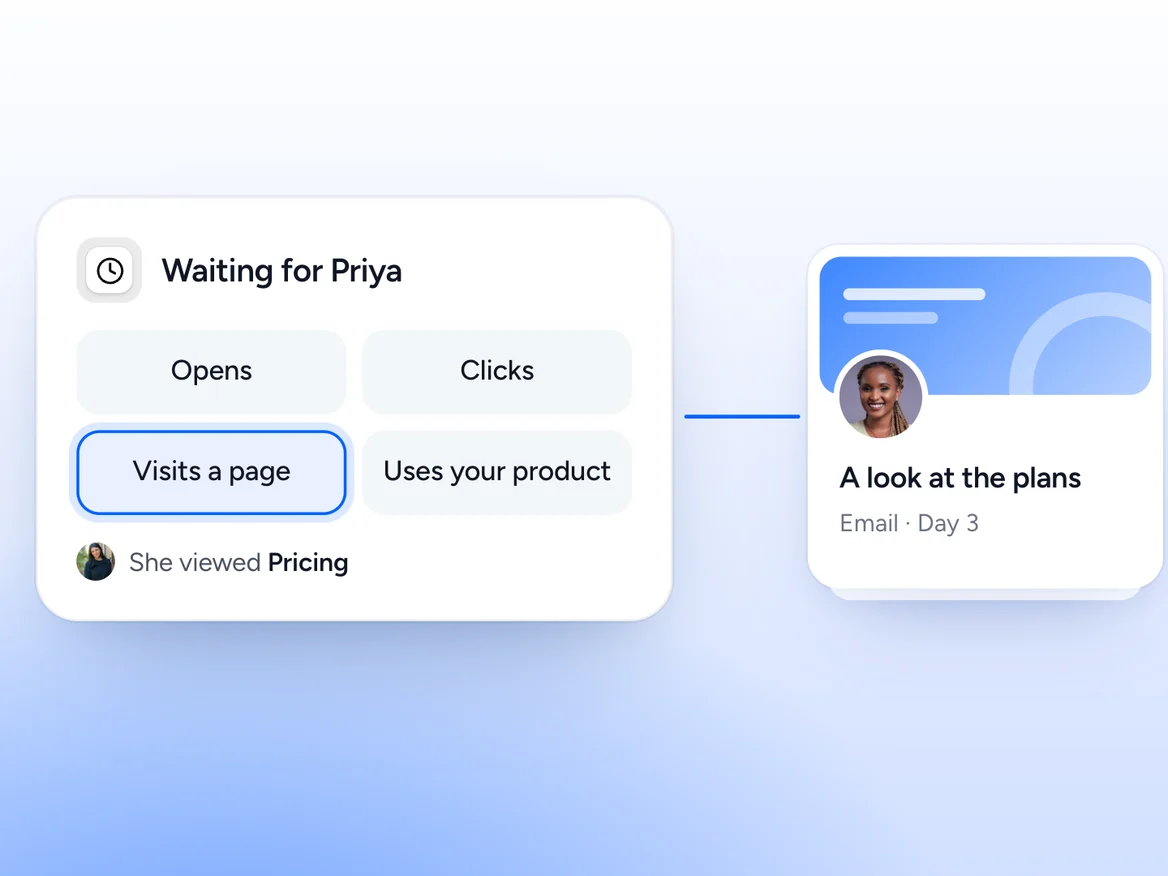
A Pattern Campaign from that group writes each email for one person from their own activity, in your sender’s voice. A Wait can hold until they do something, such as log in, visit a page or do an action in your product, and a Branch can stop the path for anyone who is back doing the core action. See Building The Path.
Agent guardrails count every campaign together: by default at most 3 emails per person in any 7 days, and a 3-day pause after someone replies. A person who sits in several at-risk patterns does not get an email from each.
What Behavly does not do: it is not a customer success platform, and it does not read your CRM, support tickets, seats or contracts, so those parts of the score stay where they are. It does not de-anonymize visitors either. Anonymous visitors are analyzed, but only identified users get emails.